Loading…
Do You Need New Hardware to Run a Captive Portal?
By weirdtoo·October 10, 2026·6 min read
Check settings, firmware, and isolation before buying hardware for a captive portal; run a pilot and add only what’s missing.
Do You Need New Hardware to Run a Captive Portal?
I’d check your current gear before buying anything. You may need no new hardware if it can keep guests away from your payment terminal and staff devices - and support the login screen you want.
I’d work through 3 checks:
- Settings and access: Confirm guest separation, guest-to-guest blocking, firmware, licenses, and permission to change the setup.
- Login and Wi-Fi: Check your portal provider’s exact model requirements. Then test login, coverage, and bandwidth limits. A login screen won’t fix a dead spot by the bar.
- The smallest fix: Keep and configure what works. Add a gateway or controller if it fills the gap. Replace hardware only when its features, capacity, or support fall short.
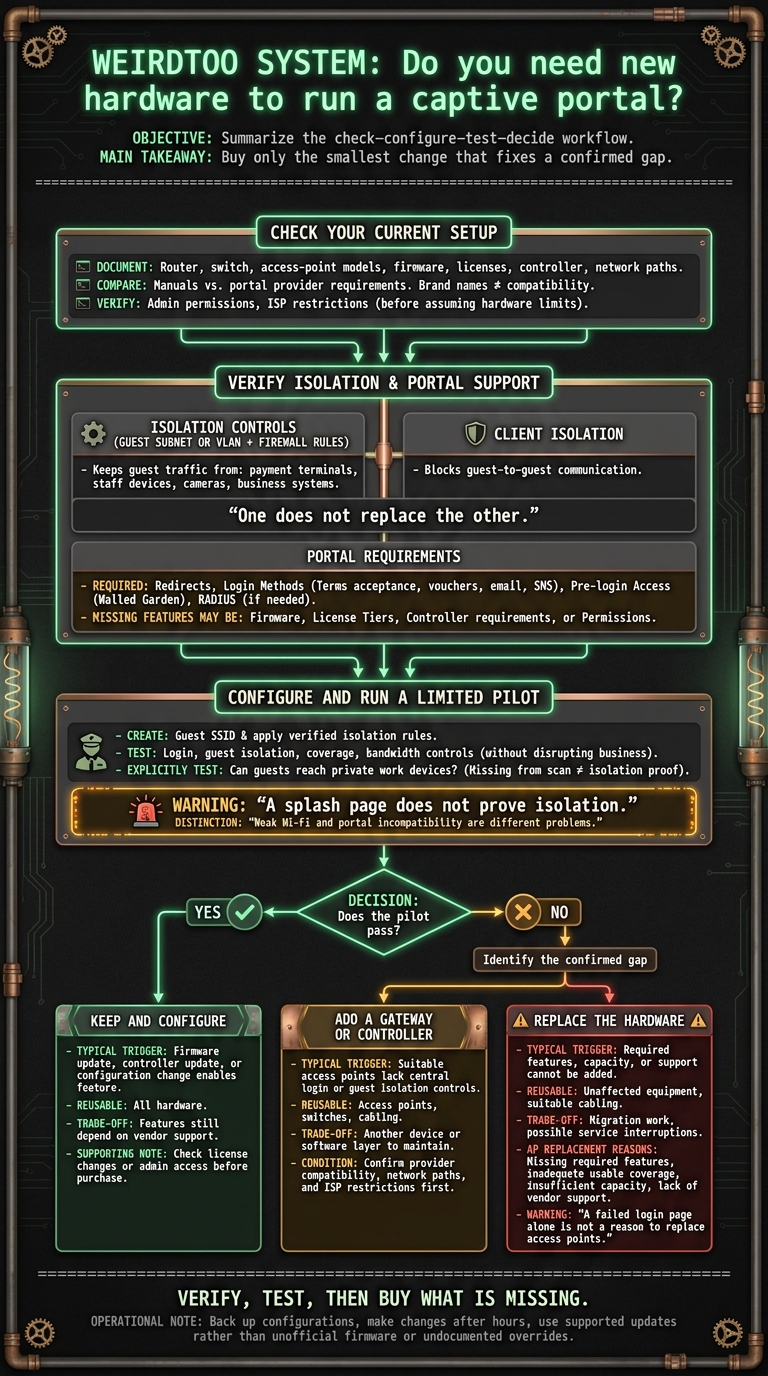
<u>A splash page is not a security test.</u> I’d run a small pilot and check whether a guest can reach your work devices. If the checks pass, keep your equipment. A new box is not the goal.
Captive Portal Hardware: Check Before You Buy
Captive Portal Configuration in OPNsense
sbb-itb-342b8b2
Check Hardware Compatibility Before Buying
Before you buy a new router, check whether the problem is a setting, a license, or permission to make changes. Write down exact equipment models and setup details. Compare them with the manuals and your portal provider’s requirements - not just the name on the box. Map your business devices and the network paths they use. [1][2]
Use this checklist to sort configuration fixes from hardware gaps.
| Requirement | What to Check | What Failure Means |
|---|---|---|
| Guest separation | Isolated subnet or VLAN, plus firewall rules | Guests may reach business devices; isolate traffic or replace gear that cannot support separation. |
| Client isolation | AP settings that block guest-to-guest communication | Guests may reach one another’s devices. |
| Portal support | Required redirects, login methods, and pre-login access rules | Login or authentication may fail. |
| Firmware and license | Features supported by the installed version and subscription tier | An update or license change may be enough. |
| Administrator access | Permission to change router and controller settings | The current admin, owner, or ISP may need to restore access. |
Check network isolation first. Test the login flow next. Then confirm you have permission to make the needed changes.
Separate Guest Traffic From Business Devices
Check that your router, switch, and APs support an isolated guest subnet or VLAN - a logically separate network. Confirm client isolation support and firewall rules that protect your payment terminals, staff devices, cameras, and other business systems. [1][2]
These controls do different jobs. Client isolation blocks guests from reaching one another’s devices. Firewall rules keep guest traffic away from your business devices. One does not replace the other.
Check Portal Redirects and Login Options
Match the built-in or external portal to the login flow you want: terms acceptance, vouchers, email, or SMS. Check how the gateway grants access after login and which destinations it must allow before login, including authentication endpoints.
A walled garden lets guests reach selected sites before logging in. Some integrations also need RADIUS, an authentication service. A working terms page proves only that the terms page works - not that vouchers, email, SMS, or external authentication will work.
Check Firmware, Licenses, and Admin Access
Read the release notes and check license tiers before treating a missing menu as a hardware limit. ISP-managed equipment or missing controller credentials can make an access problem look like a compatibility problem. [2]
Treat UniFi and TP-Link Omada as examples, not compatibility guarantees. Verify exact models, controller version, permissions, and whether the controller must stay running 24/7 for the chosen portal. Recover or transfer management access before considering a reset. [4][5]
Configure Compatible Equipment
If your gear passed the compatibility check, create a guest SSID and apply the isolation rules you already verified. Do this before buying anything. [1][2]
Test Guest Access Without Disrupting Business
Start with a limited pilot. Check that guests can connect - and that they cannot reach your internal devices. A splash page does not prove isolation. It is a screen, not a security test. [1]
Before you buy, verify the provider’s current hardware and portal requirements. If the pilot reveals a missing feature, use that gap to decide what you need: a setting change, a license upgrade, or new hardware.
Add or Replace Hardware Only to Fix a Confirmed Gap
Test before you buy. A locked setting is not a hardware problem unless the vendor or ISP cannot enable it.
Once testing confirms what is missing, use this chart to pick the smallest supported fix. Start with the option that causes the least disruption.
| Best Fit | Typical Trigger | What Remains Reusable | Trade-off |
|---|---|---|---|
| Keep and Configure | A firmware update, controller update, or configuration change enables the missing feature. | All hardware. | Features still depend on vendor support. |
| Add a Gateway or Controller | Your access points are suitable but lack central login or guest isolation controls. | Access points, switches, and cabling. | Another device or software layer to maintain. |
| Replace the Hardware | Required features, capacity, or support cannot be added. | Unaffected equipment and suitable cabling. | Migration work and possible service interruptions. |
Start With the Smallest Supported Change
Check for a supported firmware or controller update before ordering equipment. Verify the exact model and firmware version. Back up the configuration, then make changes after hours.
Skip unofficial firmware and undocumented overrides. They can disrupt service and put your setup outside vendor support. A workaround is not much help if it leaves you on your own when something breaks.
If an update cannot fix the gap, ask the portal provider whether a compatible gateway or controller will work with your existing access points. Check the network path and ISP restrictions first. [2]
Replace Access Points Only When They Fall Short
Replace access points when they lack required features, usable coverage, enough capacity, or vendor support. A failed login page alone is not a reason to replace them. Weak Wi-Fi and portal incompatibility are different problems.
Send the provider your network map, firmware versions, and network paths so it can identify the smallest supported change. [1]
If the portal still fails, check where guest isolation stops. Trace guest traffic to the first device that fails to isolate it.
Conclusion: Verify, Test, Then Buy What Is Missing
Your current router, access points, firmware, licenses, and admin access may already be enough. Check that your ISP allows guest-network support. [2]
Document your gear. Before committing to Weird Network or another provider, get confirmation of availability, model compatibility, network layout, and pilot terms.
During the pilot, test whether guests can reach your private work devices. A device missing from a scan is not proof that guests cannot access it. Check login, guest isolation, coverage, and bandwidth controls without disrupting your work devices. [2][3]
Buy only the smallest change that fixes a confirmed gap. If the pilot passes, keep your current equipment.
FAQs
How can I safely test guest network isolation?
Connect a device to your guest Wi-Fi. Try to ping or open a known internal IP address: your printer, file server, or router’s management interface [1]. The guest device should not be able to reach any of them. That’s the test - not whether the network has “Guest” in its name.
Check your router’s settings to make sure guest traffic stays separate from your private or internal network [1].
How many guests can my current hardware support?
Your router or access point has a limit on how many guests it can connect at once. Check the technical specifications or manual for the maximum number of concurrent wireless clients. The exact limit depends on your hardware.
Most consumer-grade routers support a limited number of simultaneous connections. Push past that limit, and guests may get slower service or dropped connections. If your equipment struggles with guest traffic, you may need enterprise-grade hardware built to handle more clients.
What happens if my portal controller goes offline?
Whether users stay online depends on your network hardware setup. Existing users may stay connected. New users will likely be unable to authenticate or access the network, since the controller often handles captive portal logins [1].
Check whether your access points cache authentication states or need a constant connection to the controller to work [1].
Current contact path
Need Weird Network WiFi, custom apparel, or scoped help?
Use the contact form; removed product, checkout, research, and newsletter funnels stay offline.