Loading…
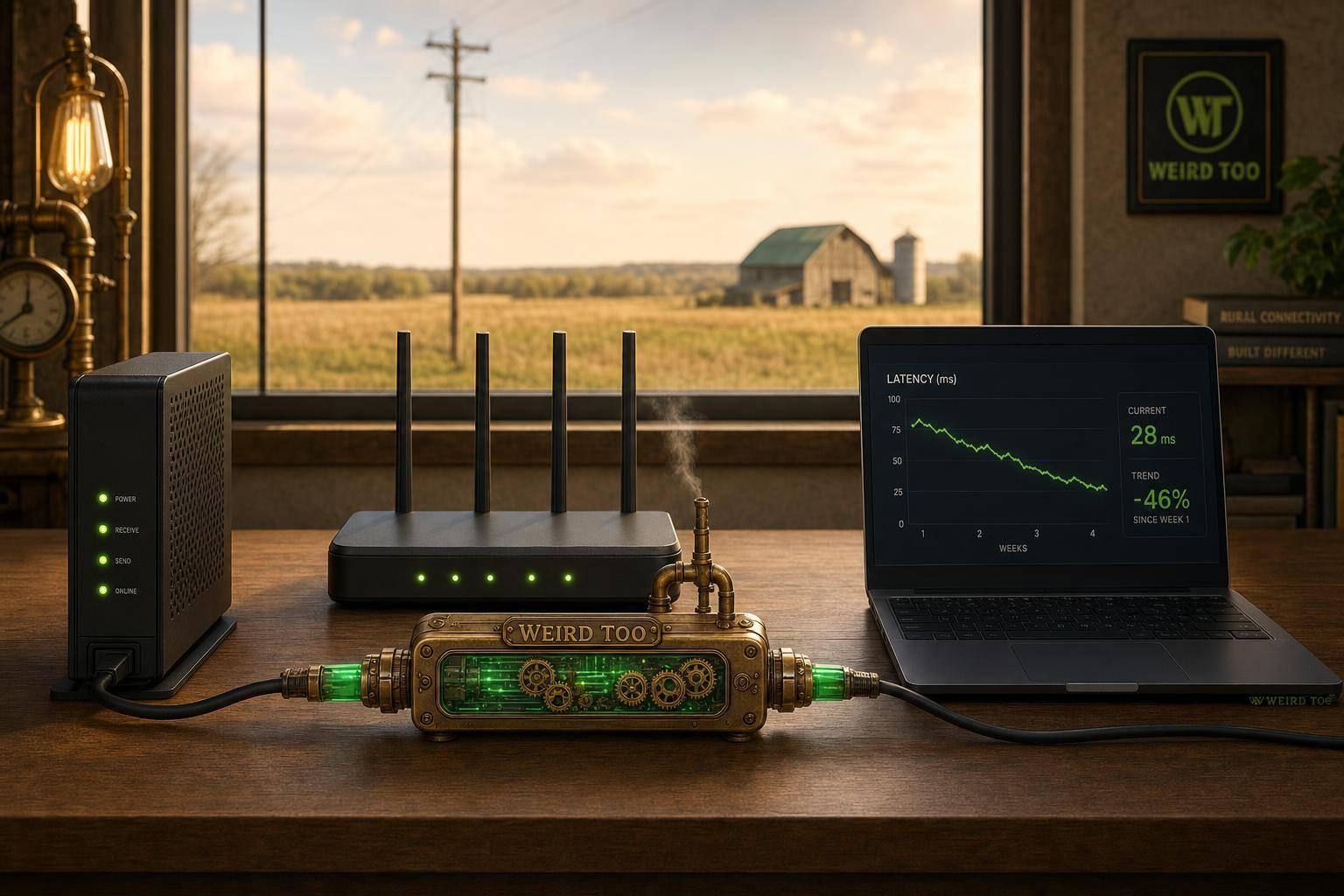
Latency Explained: A Guide for Independent Contractors
By weirdtoo·July 4, 2026·6 min read
Practical steps to test, reduce, and manage internet latency for independent contractors, with rural-friendly fixes and ISP tips.
Latency Explained: A Guide for Independent Contractors
Latency Explained: A Guide for Independent Contractors
Overview
This comprehensive guide demystifies internet latency, explaining how it impacts real-time communication and remote applications for independent contractors, particularly those working from rural and underserved communities. It offers practical troubleshooting steps, optimization strategies, and ISP evaluation tips.
What is Latency?
Latency is the time delay between taking an action on your device and seeing the system's response. Often referred to simply as "lag," it represents the round-trip time (RTT) measured in milliseconds (ms) for a data packet to travel from your computer to a remote server and back again. While bandwidth measures how much data can move at once (the width of your internet pipe), latency measures how fast that data actually travels (the length of the pipe). For interactive tasks, low latency (a short pipe) is much more important than high bandwidth.
Why Latency Matters for Independent Contractors
For independent contractors, your internet connection is your professional lifeline. Unlike traditional employees backed by corporate IT departments, contractors bear sole responsibility for their tools, setup, and client relations. In remote client agreements, high latency is a silent dealbreaker. While a high-bandwidth connection may let you download files quickly, high latency (above 150ms) causes video calls to lag, screen sharing to freeze, and typing in remote desktops to feel sluggish. Under strict client expectations, persistent connectivity friction can lead directly to lost contracts and negative professional reviews. Keeping your latency low guarantees you can participate in client pitches and collaborative sessions as seamlessly as if you were in the same office.
Practical Examples
- The Virtual Consultant: An independent management consultant living in a rural area joins a high-stakes Microsoft Teams pitch with a potential corporate client. On a low-latency connection (e.g., Starlink at 35ms or Rural Fiber), the presentation flows naturally. On a high-latency connection (such as Viasat at 650ms), there is a frustrating 1.5-second delay before the consultant answers questions, leading to interrupted speech and a perceived lack of preparation.
- The Remote Software Developer: A freelance coder accesses a client's secure network via a Virtual Private Network (VPN) and a Remote Desktop Protocol (RDP) session. Because RDP requires instantaneous feedback for every keystroke and mouse movement, a low latency (under 100ms) keeps typing smooth. If latency spikes above 150ms, there is a physical delay between typing a key and seeing the character appear on the screen, making coding virtually impossible.
- The Freelance Video Editor: An editor tries to coordinate a real-time edit review with a producer via screen sharing on Zoom. At 50ms of latency, the playback coordinates perfectly. At 250ms of latency, the producer's feedback is out of sync with what the editor is playing, making frame-accurate collaboration fail.
Tips for Evaluation or Improvement
- Ditch Wi-Fi for a Wired Ethernet Connection: Wi-Fi signals are prone to interference and packet loss, which spikes latency. Run a physical Cat6 or Cat6a Ethernet cable from your router directly to your workstation. If running a cable isn't possible, look into MoCA 2.5 adapters (which send Ethernet signals over coaxial TV wiring) as they are far more stable than wireless.
- Enable Smart Queue Management (SQM): If your latency spikes when others in your house use the internet, configure SQM (such as fq_codel or CAKE) in your router's settings. SQM intelligently prioritizes time-sensitive data packets (like video calls and VPN traffic) over bulk data transfers (like downloads and updates), virtually eliminating bufferbloat.
- Upgrade to LEO Satellite or Fixed Wireless: If fiber is unavailable in your rural community, bypass legacy satellite providers in favor of Low Earth Orbit (LEO) systems like Starlink, which deliver cable-like latency (25-60ms). Alternatively, look for 5G Fixed Wireless Access (FWA) from cell providers if you have strong signal tower coverage nearby.
- Test Your "Latency Under Load": Don't rely on standard idle speed tests. Use dedicated connection tools (like Waveform or Pong.com) to test your connection's bufferbloat grade. If your latency spikes by more than 30ms under heavy upload or download loads, your router's queue management needs configuration.
- Position for Zero Obstructions: If utilizing LEO satellite systems, use the provider's mobile app augmented reality tool to scan for obstructions before mounting the dish. Even a single overhanging tree branch can interrupt your connection, dropping sensitive enterprise VPN sessions.
Common Challenges
Independent contractors in rural or underserved areas frequently struggle with latency due to a lack of local infrastructure. Common hurdles include:
- The Rural Connectivity Tax: Many remote contractors are limited to legacy geostationary (GEO) satellite providers (like Viasat or HughesNet), which inherently suffer from massive physical latency delays (often 600ms to 750ms) simply due to the distance data must travel to orbit.
- Bufferbloat Under Shared Load: When a contractor's household or a shared rural network is active with other data-heavy tasks (like streaming or backups), the router's buffer overflows, spiking latency from a tolerable 40ms to over 800ms during critical professional calls.
- Weather and Obstruction Dropouts: Low Earth Orbit (LEO) satellites like Starlink solve latency issues but require a completely clear 100-degree cone of the sky. Heavy tree cover, standard in many rural environments, leads to micro-disconnects that drop secure VPN connections.
- Asymmetric Upload Pipelines: Many rural DSL or fixed wireless plans offer decent download speeds but severely restricted upload speeds (often under 5 Mbps), causing outgoing data queues to choke and driving up interactive latency.
Quick FAQ
Frequently Asked Questions Q: What is a "good" latency number for remote work?
A: For seamless video conferencing and remote desktop use, you want your round-trip latency to be under 100ms. Anything under 50ms is ideal and feels instantaneous. Once latency exceeds 150ms, voice delays and video freezes become highly noticeable. Q: Does my VPN affect my latency?
A: Yes. Because a VPN encrypts and routes your internet traffic through an additional intermediary server, it typically adds an extra 10ms to 30ms of latency and introduces about 10% to 20% performance overhead. Q: Why does my speed test show 100 Mbps but my Zoom calls still lag?
A: You are likely experiencing "bufferbloat." Standard speed tests measure your internet when it is idle. When you or others in your home upload files or stream video, your router's buffers overflow, causing your latency to spike dramatically. You can test this specifically on sites that measure "latency under load." Q: Can I use geostationary satellite internet for remote contracting?
A: Generally, no. Legacy satellite providers (like Viasat or HughesNet) have built-in latency of over 600ms due to the vast distance the signal must travel to space. This is too slow for stable VPNs, remote desktop tools, and video calls. Low Earth Orbit (LEO) satellite internet like Starlink operates much closer to Earth and offers low latency (25-60ms) suitable for remote work.
Checklist for Implementation
- Test your latency and jitter. Use a free tool like Waveform's bufferbloat test or a standard ping test. Ensure your idle latency is under 100 ms (ideally under 50 ms) and your jitter is below 30 ms.
- Evaluate your current connection type. If you are on geostationary satellite internet (Viasat/HughesNet) with 600+ ms latency, research low-Earth orbit (LEO) satellite alternatives like Starlink or local fixed wireless providers.
- Switch from Wi-Fi to a wired Ethernet connection. This bypasses local RF interference, stabilizing your ping and reducing local latency spikes.
- Enable Quality of Service (QoS) or Smart Queue Management (SQM) on your router. This prioritizes real-time traffic (video calls, VoIP) over background downloads, preventing latency spikes (bufferbloat) when multiple devices are active.
- Create a backup internet strategy. Set up a 5G/LTE cellular hotspot as a standby connection to keep your operations active if your primary link fails.
- Verify VPN performance. If clients require a secure VPN, test your latency with the VPN active, aiming for a round-trip time below 150 ms to ensure smooth remote desktop and communication tool performance.
Related Resources
- Waveform Bufferbloat Test Tool
- FCC Broadband Speed Guide
- Ookla Speedtest Platform
- Starlink for Business Overview
Related ISP Concepts
- Bandwidth
- Jitter
- Packet Loss
- Bufferbloat
- Symmetrical vs. Asymmetrical Bandwidth
- Dedicated Internet Access (DIA)
- Connection Types (Fiber, Cable, LEO Satellite)
Target Audience
- Independent Contractors
- Freelancers
- Rural Remote Workers
- Self-Employed Consultants
- Sole Proprietors
Related Weird Too links
Keep following this lane
Current contact path
Need Weird Network WiFi, custom apparel, or scoped help?
Use the contact form; removed product, checkout, research, and newsletter funnels stay offline.