Loading…
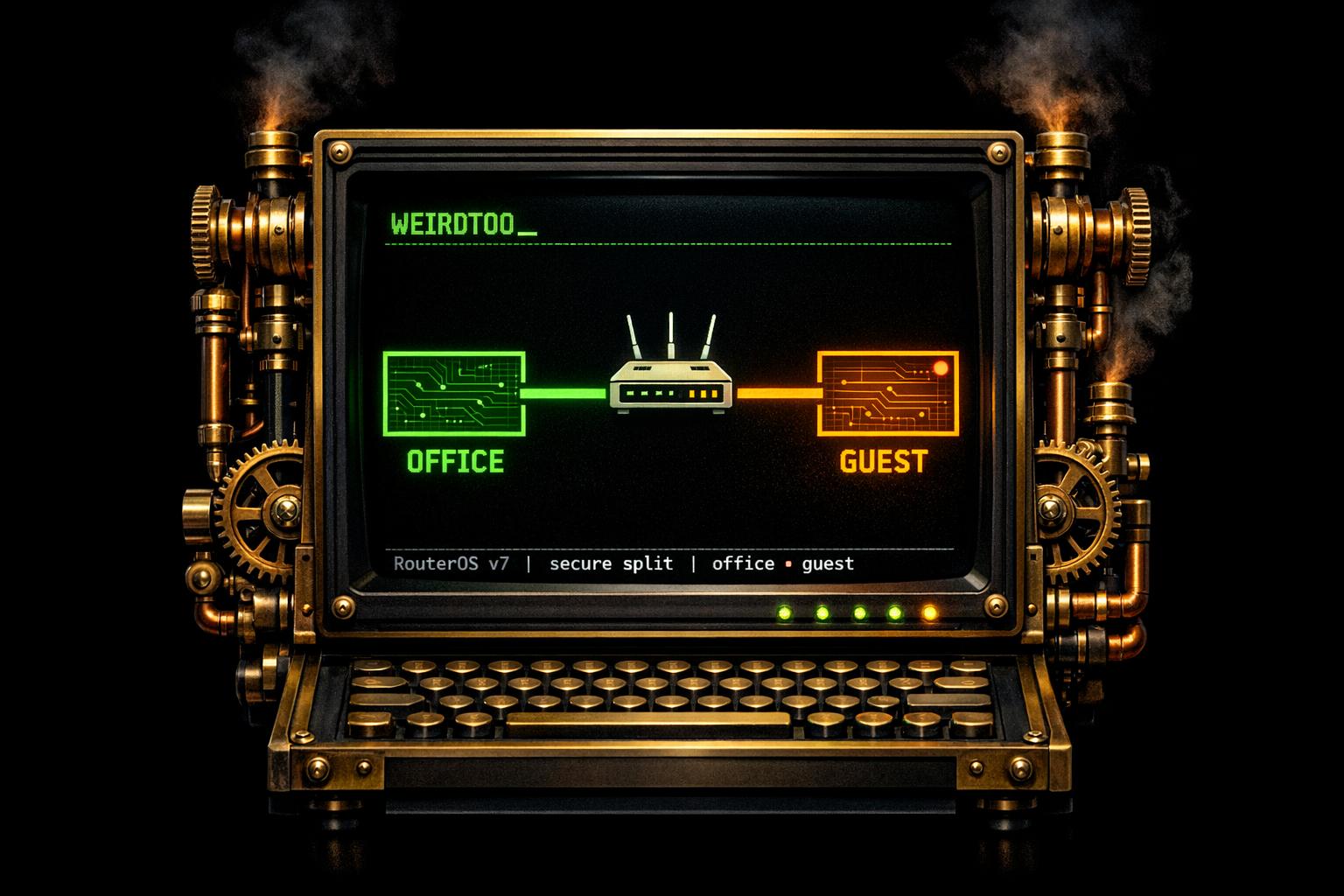
How to Separate Office & Guest Networks on MikroTik v7
By weirdtoo·April 20, 2026·5 min read
Learn how to configure VLANs on MikroTik v7 to separate office and guest networks securely without a managed switch.
How to Separate Office & Guest Networks on MikroTik v7
In today’s digital age, secure and efficient network management is a critical need for small businesses - especially those in underserved rural areas like Wyoming. Whether you’re operating an RV park, a restaurant, or a local venue, providing reliable Wi-Fi access for office operations and guest use can boost your business while protecting sensitive data.
This article explores how to use MikroTik’s Version 7 firmware to separate office and guest users on distinct networks. The method involves VLAN (Virtual Local Area Network) configuration, a practical solution for maintaining network security and bandwidth control without the need for expensive managed switches.
Let’s break down the step-by-step process to set up secure, isolated networks for your office and guests, creating a scalable solution for your business needs.
Why VLANs Are Essential for Network Isolation
Before diving into the configuration, let’s address a common question: Why not just assign separate IP ranges to office and guest users without VLANs?
The answer lies in broadcast domains. Without VLANs, even with different IP ranges, both office and guest users remain on the same physical network, allowing broadcast traffic to flow freely between them. This lack of proper isolation can create security vulnerabilities, as guest users could potentially access internal resources or compromise sensitive data.
By implementing VLANs, each segment of the network operates on a distinct broadcast domain. This ensures:
- Enhanced Security: Guest users cannot access internal office resources.
- Better Traffic Management: You can control bandwidth and prioritize office-related tasks.
- Scalability: Easily extend your network to additional routers or access points without overlapping traffic.
sbb-itb-342b8b2
How to Separate Office and Guest Networks Using MikroTik v7
Step 1: Set Up Your MikroTik Router
Begin by logging into your MikroTik router using its interface. Rename the ports to reflect their intended function to make configuration easier. For example:
- Ether0: Office users
- Ether1: Guest users
- Ether5: Trunk port (for extending the network to another router or access point)
Step 2: Create a Bridge
In MikroTik v7, VLAN filtering is managed through a bridge. Follow these steps:
- Go to the Bridge menu and create a new bridge.
- Name the bridge (e.g., "MainBridge").
- Ensure VLAN filtering is initially turned OFF. This will allow you to complete the configuration without interruptions.
Step 3: Assign Ports to the Bridge
Assign the relevant ports under the bridge configuration:
- Add Ether0 (Office), Ether1 (Guest), and Ether5 (Trunk) to the bridge.
- Specify which ports will operate as "Access Ports" (unidirectional links for specific users) and which will act as the trunk port for VLAN tagging.
Step 4: Configure VLANs
Create VLANs for office and guest networks. Let’s say:
- VLAN ID 10 = Office network
- VLAN ID 20 = Guest network
Steps:
- Go to the VLAN Interface section.
- Add VLAN 10 and VLAN 20 to the bridge.
- Specify the corresponding ports:
- Office VLAN (ID 10) → Ether0
- Guest VLAN (ID 20) → Ether1
- Trunk VLAN (both IDs 10 and 20) → Ether5
Each VLAN will now have its own separate broadcast domain, ensuring proper isolation.
Step 5: Assign IPs and Set Up DHCP Servers
- Assign IP addresses to each VLAN interface. For instance:
- VLAN 10 (Office): 192.168.10.1/24
- VLAN 20 (Guest): 192.168.20.1/24
- Configure DHCP servers so devices connected to these VLANs automatically receive IP addresses:
- In the DHCP setup, link each server to the respective VLAN interface.
Step 6: Enable VLAN Filtering
Now that the configuration is complete, go back to the bridge settings and enable VLAN filtering. Be careful during this step, as enabling filtering too early can disconnect devices from the router.
Step 7: Extend the Network to Additional Routers
If you need to expand your network, connect another router (Router 2) to the main router’s trunk port (Ether5). Configure Router 2 to receive the VLAN traffic using similar steps:
- Set up a bridge on Router 2.
- Configure VLANs for the received traffic.
- Assign access ports on Router 2 to distribute VLAN 10 and VLAN 20 traffic separately.
Practical Example: Testing Your Configuration
To confirm your setup:
- Connect a device to Ether0 (Office) and check if it receives an IP in the
192.168.10.xrange. - Connect another device to Ether1 (Guest) and verify it receives an IP in the
192.168.20.xrange. - Use the trunk port (Ether5) to connect to Router 2, ensuring VLAN traffic flows correctly to additional devices.
This test ensures your VLAN configuration is properly isolating office and guest networks.
Key Benefits for Wyoming’s Small Businesses
For rural businesses like RV parks, trailer parks, and restaurants, this setup provides the following advantages:
- Affordable Network Management: No need for costly managed switches - MikroTik routers handle VLANs efficiently.
- Improved Customer Experience: Offer secure, dedicated guest Wi-Fi without compromising internal systems.
- Scalability: Whether you’re expanding to additional routers or serving more users, this setup is easy to adapt.
- Security Compliance: Protect sensitive office data from unauthorized access by isolating guest traffic.
Key Takeaways
- VLANs ensure proper network isolation, enhancing security and traffic control.
- MikroTik v7’s bridge-based VLAN filtering is a cost-effective solution for small businesses.
- The trunk port allows seamless extension of VLAN traffic to additional routers or access points.
- DHCP configuration simplifies IP address management for both office and guest users.
- Testing your network ensures that both office and guest traffic are fully separated.
By implementing this guide, Wyoming’s small businesses can provide reliable, secure internet services to guests while safeguarding their internal operations. Whether you’re a tech-savvy entrepreneur or new to network management, this scalable solution bridges the digital divide for rural communities.
Source: "Separate Office & Guest Network Using VLAN in MikroTik v7 | Extender & Managed Switch Setup" - Khairul The Sysnet Pro, YouTube, Jan 30, 2026 - https://www.youtube.com/watch?v=BUvA2DlY_Nc
Current contact path
Need Weird Network WiFi, custom apparel, or scoped help?
Use the contact form; removed product, checkout, research, and newsletter funnels stay offline.