Loading…
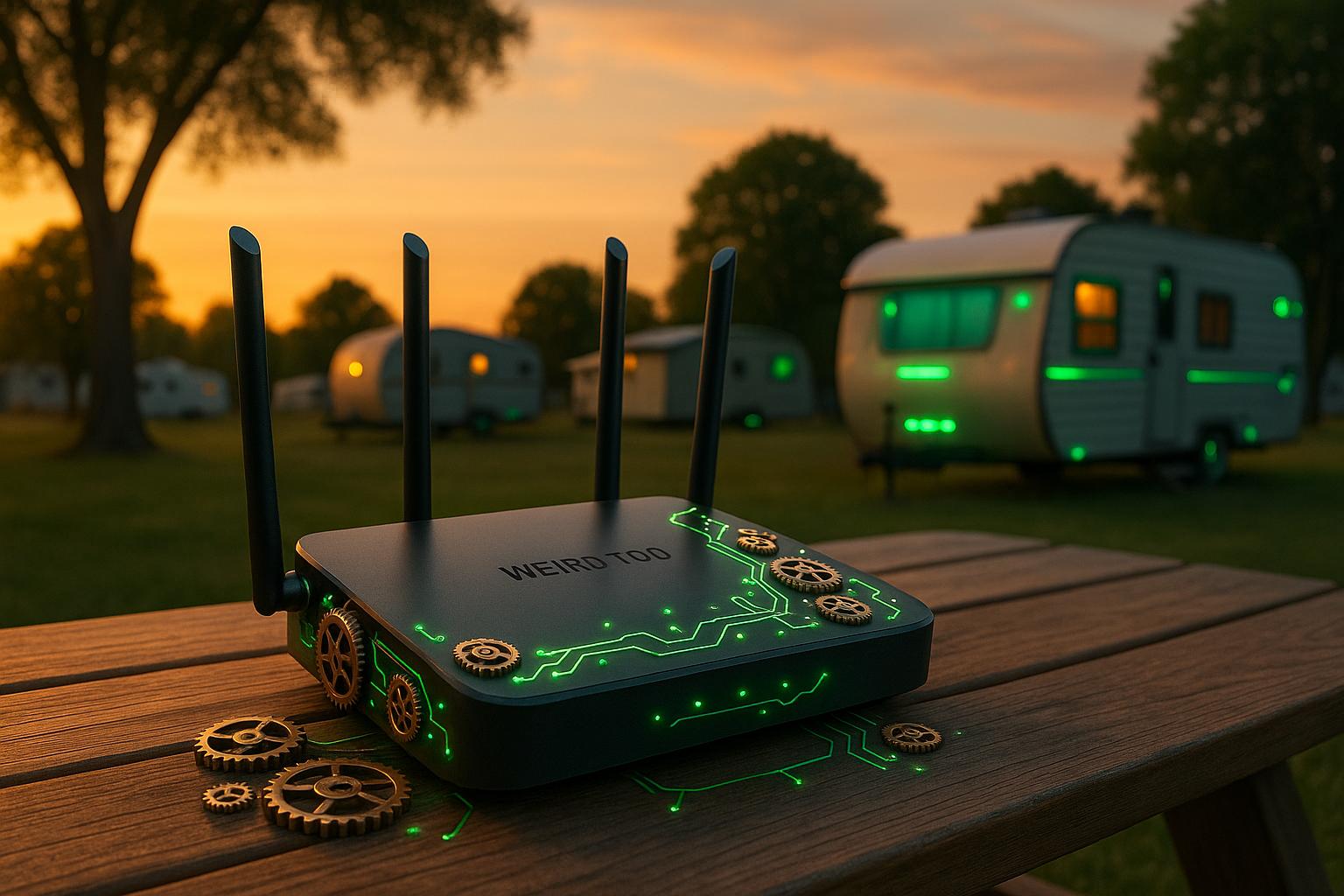
How to Fix Slow Wi-Fi in Trailer Parks
By weirdtoo·July 28, 2025·18 min read
Learn effective strategies to enhance slow Wi-Fi in trailer parks, addressing equipment, placement, and bandwidth management for reliable connections.
How to Fix Slow Wi-Fi in Trailer Parks
Slow Wi-Fi in trailer parks is a common frustration caused by a mix of physical barriers, outdated equipment, and network congestion. Metal RV walls, trees, and weather can block signals, while too many devices competing for bandwidth and old routers worsen the problem. Here's how to improve your connection:
- Upgrade Equipment: Replace old routers with modern, outdoor-grade hardware. Use mesh Wi-Fi systems for wider coverage instead of repeaters.
- Optimize Placement: Position access points centrally, elevated, and away from metal or interference sources.
- Manage Bandwidth: Use Quality of Service (QoS) settings to prioritize essential tasks and limit heavy users.
- Test and Troubleshoot: Conduct speed tests, identify dead zones, and monitor for overloaded networks or faulty hardware.
- Choose Better Channels: Switch to less crowded Wi-Fi channels and leverage the 5 GHz or 6 GHz bands if available.
Investing in the right tools and setup ensures reliable internet for residents and visitors, even in challenging environments.
Maximizing Your Campground WiFi
What Causes Slow Wi‑Fi in Trailer Parks
Figuring out why your Wi‑Fi is sluggish is the first step to fixing it. In trailer parks, a mix of challenges can turn even the fastest internet into a crawl. Let’s explore the main culprits, from physical barriers to outdated equipment, and how they impact performance.
Physical Obstacles That Block Wi‑Fi Signals
Wi‑Fi signals don’t stand a chance against certain physical barriers. For instance, metal surfaces like RV walls can bounce signals around, creating dead zones even if the outdoor coverage is strong [5][2].
Trees and thick vegetation are another problem - they block signals, and water (even in leaves) absorbs them [4][5]. On top of that, weather conditions like rain and high humidity can weaken signal strength [1].
Concrete structures in the park add to the problem by absorbing signals, and large metal buildings can interfere as well [4][5]. Even where you park your RV matters. Being closer to the Wi‑Fi source gives you a stronger connection, while parking behind other obstacles can leave you with weak or spotty service [4].
Too Many Devices Sharing the Same Network
Even if your Wi‑Fi signal is strong, too many devices using the network can slow things down. When multiple families or individuals share the same connection, the available bandwidth gets divided among all the devices. This can lead to slower speeds, unreliable connections, and higher latency, especially during peak usage times [6].
Without proper bandwidth management, heavy users can hog the network, leaving others with poor performance. Fair distribution of internet resources is key to keeping everyone online [3].
Outdated Equipment That Can't Keep Up
Old equipment can be just as big of an issue as overcrowded networks. Many trailer parks still rely on routers and other gear that were fine for basic browsing years ago but struggle with today’s demands, like streaming and video calls.
"An outdated or misconfigured router or other components connected to your WiFi Internet service can bottleneck your internet speed. Ensure the products connected to the service are capable of handling high speeds and are properly set up."
Routers that are more than three years old might not support modern Wi‑Fi standards and should be replaced [8]. Outdated gear is not only slower but also less secure. As one managing director put it:
"Many business owners don't realise the serious security risks lurking behind their outdated equipment. It's easy to forget about your router once it's set up, but using an old router can leave your network exposed to cyber threats, giving hackers an easy entry point to sensitive data."
Another issue is backhaul capacity. In 2024, Spectrum/Xfinity started cutting off internet service to RV parks that were using outdated coaxial (copper) backhaul to serve hundreds of guests over Wi‑Fi, which violated their terms. The solution? Dedicated Internet Access (DIA) with fiber-optic connections, which can handle speeds of 1,000 Mbps consistently [9].
Updating your router’s firmware is also critical. Regular updates fix bugs and patch security vulnerabilities that could otherwise slow down your network.
When physical barriers, overloaded networks, and aging equipment combine, Wi‑Fi performance takes a hit. Pinpointing the specific issues affecting you can help you find the right solutions to improve your connection.
How to Test and Find Wi‑Fi Problems
Troubleshooting Wi‑Fi issues effectively can save you both time and money. Before rushing to replace equipment or contacting your service provider, it's worth diving into a few diagnostic steps to figure out what's really going on with your connection.
Conducting Accurate Speed Tests
Speed tests reveal the actual performance of your internet connection, which may differ from the speeds advertised in your plan. Factors like Wi‑Fi conditions and device limitations can significantly impact what you experience [11].
Choose the right tools for your setup. Tools like RV LIFE Internet Speed Test, Speedtest.net, and Xfinity Speed Test are designed for different environments and can help you get an accurate read on your connection [10][11].
Test across devices and locations. Run speed tests on multiple devices and in various areas to identify whether the problem is tied to a specific device, location, or the network as a whole.
Look beyond download speeds. While download speed often gets the spotlight, upload speed, ping, and jitter are just as important - especially for activities like video calls and gaming. For example, upload speeds of 1–2 Mbps are generally sufficient for most tasks, but a low ping and minimal jitter are essential for smooth real-time interactions [10].
| Activity | Required Download Speed |
|---|---|
| 1 Mbps | |
| Web browsing | 5–10 Mbps |
| Social media | 10 Mbps |
| Video calls | 10–20 Mbps |
| Streaming | 3–20 Mbps |
| Online gaming | 25–35 Mbps |
| 4K streaming | 35 Mbps |
Pay attention to ping and jitter. Ping measures the time it takes for data to travel to the server and back, while jitter reflects the consistency of that connection. For smooth video calls or gaming, jitter should stay below 30ms [10]. Issues like network congestion, outdated equipment, or background apps can worsen these metrics [10].
Keep in mind that shared bandwidth impacts everyone on the network. Even if your speed test results look good, heavy usage by multiple devices can still slow things down [11].
Once you've assessed your speed, it's time to tackle dead zones and interference.
Finding Signal Dead Zones and Interference
Dead zones are those frustrating spots where your Wi‑Fi signal is either too weak or nonexistent [12]. Identifying them can make a big difference in improving your network's coverage.
Start with feedback from users. If others in your home or office are complaining about poor Wi‑Fi in specific areas, that’s a good place to begin your investigation [12].
Use your phone as a signal detector. Walk around while connected to your Wi‑Fi network and watch the signal indicator on your phone. This simple method can quickly reveal where the signal drops or disappears [13].
Try signal analysis apps. For more precision, use Wi‑Fi analyzer apps (available for Android) or network scanner software like inSSIDer for Mac and Windows [13]. These tools can help pinpoint dead zones and provide detailed information about your signal strength.
If you're an AT&T Internet customer, the Smart Home Manager app can also help identify weak spots in your Wi‑Fi coverage [14].
Check for channel interference. Nearby routers operating on the same Wi‑Fi channel can cause interference. Use tools like inSSIDer to analyze channel usage and switch to a less crowded one if needed [12][14].
Document your findings. As you test different areas, map out where the signal is strong, weak, or absent. This can help you decide where to place additional access points or make other adjustments to improve coverage.
Once you've addressed dead zones, it’s important to check for network congestion or faulty hardware that could be slowing things down.
Spotting Overloaded Networks and Broken Hardware
Recognize the symptoms of an overloaded network. If your internet feels sluggish, connections drop frequently, or the network seems unstable, too many devices might be competing for bandwidth [16]. Overloaded networks can lead to packet loss, making everything feel slower [18].
Inspect your router. Check the status lights on your router or modem. Blinking, flashing, or unusual colors could indicate a hardware issue. You can also log into your router’s web interface to review connected devices and see if anything looks out of place. A quick power cycle might resolve temporary glitches [16][17][15].
Run diagnostic tests. Tools like traceroute can map out the path your internet traffic takes, helping you pinpoint where slowdowns occur. Similarly, ping tests can reveal whether the issue lies within your local network or further along the connection [18].
Wireless networks are naturally more prone to packet loss due to factors like radio interference, weak signals, or long distances [18]. Understanding whether the problem stems from Wi‑Fi issues, network congestion, or faulty hardware will guide you toward the right solution.
Once you've identified the root cause, you’ll be ready to make targeted improvements to your hardware or network setup in the next steps.
Upgrading Hardware and Network Setup
When dealing with Wi‑Fi issues in trailer parks, upgrading your hardware and optimizing the network layout can make a world of difference. The unique setup of trailer parks - with metal RVs, outdoor spaces, and varying user demands - requires thoughtful equipment selection and placement. Here's how to tackle these challenges effectively.
Picking the Right Router and Access Points
Setting up a reliable Wi‑Fi network in a trailer park is very different from doing so in a home or office. The outdoor environment, RV construction materials, and fluctuating user demands all require specific solutions.
Tailor your equipment to your park's layout and size. A large, spread-out park will need different equipment than a smaller, more compact one. For instance, a 50-site park where guests stream video will demand significantly more bandwidth than a 20-site park where most users stick to basic browsing [19].
Account for signal interference from metal surfaces. RVs often act as barriers to Wi‑Fi signals due to their metal construction, which can block radio frequencies. Add in trees, hills, and other obstacles, and you'll likely need additional access points to ensure consistent coverage [19][20].
Opt for weatherproof outdoor access points. Indoor equipment won’t cut it in an outdoor setting. Look for devices that are specifically designed for outdoor use, featuring high-gain, directional antennas to cover large areas effectively [19].
Plan for growth. As more people work remotely - 54% of travelers now do so [21] - your network needs to handle video calls, file uploads, and streaming. Choose equipment that can scale with your park, whether that means adding more sites or increasing bandwidth [19].
"Choosing the right WiFi setup for your RV park comes down to understanding your park's size, layout, and guest needs. A reliable WiFi system improves guest satisfaction, encourages longer stays, and boosts your park's reviews."
– GNS Wireless [19]
Prioritize support and maintenance. Equipment with 24/7 customer support and remote monitoring capabilities is a must. If your Wi‑Fi goes down on a busy weekend, you’ll want immediate assistance, not a wait for regular business hours [19].
Mesh Wi‑Fi vs. Repeaters: Which Works Better
The choice between mesh systems and traditional repeaters can make or break your network’s performance. Understanding how each works in outdoor environments will help you decide.
Mesh systems ensure seamless connectivity. Mesh Wi‑Fi uses multiple nodes to create a single, unified network. This allows guests to move around the park - whether from their RV to the pool or common areas - without losing connection or having to manually switch networks [25].
Repeaters require manual network switching. Unlike mesh systems, traditional repeaters rebroadcast signals from your router but create separate networks. Guests often need to switch networks manually, which can lead to frustration [25].
| Feature | Mesh Wi‑Fi | Traditional Repeaters |
|---|---|---|
| Coverage | Full coverage across large areas | Limited range |
| Network Stability | Self-adjusting network of nodes | Single point of failure |
| Guest Experience | Seamless roaming | Manual switching required |
| Scalability | Easily expandable | Requires reconfiguration |
| Cost | Higher upfront cost | More affordable |
| Performance | Better speeds and reliability | Slower speeds, less reliable |
Match the system to your park’s needs. Mesh systems are ideal for larger parks with high user demands, as they provide faster speeds and better overall performance [21][24]. For smaller parks or specific problem areas, Wi‑Fi extenders might be sufficient [26].
Consider physical obstacles. Both systems can struggle with barriers like trees, RVs, and buildings. However, mesh systems can reroute traffic through alternate nodes to maintain connectivity. For parks with dense coverage challenges, combining mesh systems with point-to-point wireless bridges might be a smart move [24][27].
Once you’ve chosen your system, the next step is to carefully position your access points.
Where to Place Access Points for Best Coverage
Strategic placement of access points is crucial for providing reliable Wi‑Fi throughout your park. The outdoor environment and metal RVs present unique challenges, but careful planning can help.
Start with a centralized, elevated position. Mount access points on poles or rooftops near the center of your coverage area. This helps distribute the signal evenly and minimizes ground-level interference [22].
Maintain a clear line of sight. Trees, buildings, and large RVs can block signals. Survey your park to identify potential obstacles and adjust placement accordingly [3].
Avoid sources of interference. Keep access points away from metal structures, electrical panels, and other devices that could disrupt signals. Since RVs naturally block Wi‑Fi signals, focus on positioning access points to work around these barriers [22][23].
Prioritize high-traffic areas. Place access points near common gathering spots like pools, laundry facilities, and offices. For residential areas, position them strategically between clusters of campsites to maximize coverage [3].
Test and adjust after installation. Use a smartphone or laptop to check signal strength throughout the park. Pay special attention to areas where guests have reported issues, and reposition or add access points as needed [22].
Think ahead. Changes to your park - like new structures or growing trees - can affect signal coverage. Position access points with flexibility in mind to avoid costly reinstallation down the road [22].
sbb-itb-342b8b2
Controlling Signal Strength and Bandwidth
Once you've tackled dead zones and upgraded your hardware, the next step is fine-tuning your network's signal strength and bandwidth. This ensures everyone connected gets an equitable share of the internet without any single user monopolizing it.
Choosing Wi‑Fi Channels to Reduce Interference
In trailer park environments where multiple networks coexist, Wi‑Fi interference can lead to slower speeds and dropped connections. Picking the right channels is key to maintaining a stable and reliable network.
Start with the 2.4 GHz band basics. In the U.S., the 2.4 GHz band is divided into 11 channels, each 20 MHz wide. However, only channels 1, 6, and 11 are non-overlapping, making them the best choices for minimizing interference [28][29].
Use a Wi‑Fi analyzer to find less crowded channels. A Wi‑Fi analyzer tool can help you see which channels are already in use and identify the least congested ones in both the 2.4 GHz and 5 GHz bands [30]. This is especially helpful in areas with competing networks.
Leverage the 5 GHz band for more options. The 5 GHz band offers more non-overlapping channels, each 20 MHz wide [28]. This reduces congestion and improves speed for devices that support it. Choose channels far from active ones to maximize performance [30].
Explore the 6 GHz band for future setups. The 6 GHz band provides even more channel options: 59 channels at 20 MHz, 29 at 40 MHz, 15 at 80 MHz, and 7 at 160 MHz [28]. While not all devices are compatible yet, this band is worth considering for new installations.
Stick to narrower channels in crowded areas. In busy environments, like trailer parks, using 20 MHz channels on the 2.4 GHz band and 40 MHz on the 5 GHz band can help maintain reliability. Wider channels (e.g., 80 MHz) may offer faster speeds but are more prone to interference [30].
Avoid DFS channels if you're experiencing drops. Dynamic Frequency Selection (DFS) channels (50–144 in the U.S.) can sometimes cause temporary Wi‑Fi interruptions as they must yield to radar systems. Switching to non-DFS channels can resolve this issue [30].
Monitor your network regularly. As new devices connect and neighboring networks change, your Wi‑Fi environment will evolve. Regularly checking for channel congestion can help you maintain optimal performance [31].
Once you've selected the best channels, the next step is prioritizing traffic to ensure smooth performance for critical activities.
Setting Up QoS to Prioritize Important Traffic
Quality of Service (QoS) settings allow you to prioritize bandwidth for essential tasks like video calls or streaming, ensuring they run smoothly even during peak usage times. This is especially useful in trailer parks, where guests often rely on the internet for both work and leisure.
Understand how QoS works. QoS allocates bandwidth to specific devices, programs, or services in real-time, giving them priority over other traffic [32]. Think of it as creating a fast lane for high-priority activities.
Start with accurate speed measurements. Use a tool like Speedtest.net to measure your internet speed. When configuring QoS, set the bandwidth slightly below your maximum speed - around 80–90% - for better results [33].
Deprioritize non-essential activities. Limit bandwidth for heavy, non-critical applications like file downloads and torrents to ensure smoother performance for VoIP calls and video streaming.
Here’s how to set up QoS on popular routers:
- TP‑Link: Log in at http://tplinkwifi.net and find QoS settings under the "Advanced" tab [33].
- NETGEAR: Access http://www.routerlogin.com and navigate to ADVANCED > Setup > QoS Setup [33].
- Google Nest Wi‑Fi: Open the Google Home app, go to Favorites > Wi‑Fi > Devices, select the device, and click "Prioritize device" [33].
Set time-based priorities. If your router supports it, schedule priorities based on the time of day - e.g., prioritize work-related tasks during business hours and streaming in the evening [33].
While QoS helps with traffic prioritization, managing individual bandwidth usage is just as important to prevent network overload.
Limiting Bandwidth Per User
To maintain a balanced network, use your router's features to limit bandwidth for specific users or devices. This ensures no single user can overwhelm the system.
Access your router's bandwidth control settings. Most modern routers include options like "Bandwidth Control" or "Speed Limit", which allow you to set maximum speeds for individual devices [34].
Set limits based on device identifiers. Use MAC or IP addresses to assign bandwidth limits to specific devices, giving you precise control over each connection [34].
Strategically use multiple network bands. Create separate SSIDs for different needs. For example, assign the 2.4 GHz band to users who need basic internet access, while reserving the 5 GHz band for high-speed activities like streaming or work [35].
Restrict guest network bandwidth. Setting up a guest network with bandwidth limits helps manage casual users while preserving full speeds for priority devices. It also adds a layer of security by isolating guest traffic from your main network [34].
Monitor and adjust as needed. Use network monitoring tools to track usage patterns and make adjustments when necessary, especially during peak occupancy [34].
Take advantage of parental controls. Many routers offer parental control features that simplify bandwidth management for specific devices or users [34].
Keep in mind that most consumer routers apply bandwidth limits per device and may not allow scheduling. For more advanced control, consider upgrading to business-grade equipment or using third-party firmware like DD-WRT or OpenWRT [34].
Using WEIRDTOO LLC Services for Trailer Park Wi‑Fi

WEIRDTOO LLC provides a suite of tools designed to simplify guest Wi‑Fi management and keep network performance running smoothly in trailer parks and similar communities. Their services complement your existing network setup, making it easier to manage guest access and monitor system performance.
Guest Wi‑Fi Management with Flexible Features
Managing guest Wi‑Fi doesn't have to be complicated. WEIRDTOO LLC's platform offers straightforward controls, such as user authentication, bandwidth limits, and custom splash pages that can showcase your park's branding. You can create multi-language splash pages, set up password-protected access, and even tier access for residents and guests. The platform also tracks guest logins and allows you to set bandwidth limits per user. For those who want detailed usage data, all plans include CSV export capabilities, while premium plans add features like video ads integration.
Real-Time Network Monitoring and Insights
WEIRDTOO LLC’s platform helps you stay ahead of potential network issues with real-time monitoring. This feature flags device failures and network problems before they interrupt service, giving you the chance to fix issues proactively. Premium plans go a step further, offering advanced analytics and a centralized dashboard to oversee multiple access points. For tech-savvy users, API integration options make it possible to customize reports and automate responses to problems as they arise.
Flexible Pricing for Parks of All Sizes
WEIRDTOO LLC’s pricing structure is designed to fit parks of varying sizes and budgets. Here's a quick look at their plans:
| Plan Name | Monthly Cost | Sessions Included | Key Features |
|---|---|---|---|
| Basic | Free | 100 logins | Multi-language splash pages, bandwidth limits, CSV export |
| Basic Plus+ | $7/month | 3,000 logins | Password-protected pages, video ads, data capture, advanced stats |
| Social Free | Free | 100 logins | Social media login integration, basic features |
| Social Plus+ | $15.47/month | 3,000 logins | Social login with all premium features |
For smaller parks with 10–20 units or seasonal operations, the free plans are a great starting point. If you find that the 100-session limit in the free plans isn’t enough, you can purchase extra sessions at $20 for an additional 5,000 logins. For larger parks with frequent guest turnover exceeding 3,000 sessions per month, keep an eye out for the upcoming Pro/Family plan, which could provide even more savings and features tailored to high-traffic environments.
Next Steps for Better Trailer Park Wi-Fi
Boosting your park's Wi‑Fi starts with testing network speeds at various locations and during busy hours to identify problem areas. This helps you pinpoint where upgrades are most needed.
Swap out consumer-grade routers for commercial-grade equipment. For instance, parks using multiple access points and fiber backbones can provide reliable speeds of 25–50 Mbps [2]. Make sure to place access points centrally, at elevated spots, and away from metal structures that could interfere with the signal.
With remote work becoming more common - up by over 150% between 2019 and 2025 [21] - guests now expect dependable Wi‑Fi for video calls, file sharing, and cloud-based apps. Meeting these needs can set your park apart.
Keep your network in shape by regularly updating firmware, checking outdoor equipment for weather-related wear, and monitoring bandwidth usage. For larger properties, mesh Wi‑Fi systems are a better choice than range extenders, offering faster and more consistent coverage [21].
Gather feedback from guests through quick surveys about connection speeds, dead zones, and access difficulties. Their input can help you prioritize future upgrades.
If you're just starting to improve your Wi‑Fi or looking for a budget-friendly solution, WEIRDTOO LLC's platform might be a great fit. Their free Basic plan allows up to 100 monthly logins and includes features like bandwidth controls and custom splash pages, making it easy to test what works before committing to a larger investment.
Document your network setup thoroughly. Keep records of access point locations, channel settings, and bandwidth configurations. This not only simplifies troubleshooting but also makes staff training more efficient.
FAQs
How can I tell if my slow Wi-Fi is caused by old equipment or network congestion?
If your Wi-Fi feels sluggish, the first step is to figure out whether the problem stems from outdated equipment or network congestion. Start by running a speed test and compare the results to the speeds your internet plan promises. If your speeds are consistently lower than expected, your equipment might be the culprit.
Next, assess how much of your network is being used. If usage regularly hits 80–90% during busy hours, congestion could be the issue. Congestion usually results in slowdowns at specific times, while outdated equipment tends to cause consistently poor performance no matter when you use it. To troubleshoot, consider upgrading your router or cutting down on the number of devices connected to your network. See if these changes make a noticeable difference.
What’s the best way to position Wi-Fi access points in a trailer park for reliable coverage?
To provide dependable Wi-Fi coverage in a trailer park, strategically position outdoor access points in central spots near groups of trailers or campsites. Mount them at a height that reduces interference from obstacles like vehicles, metal surfaces, or thick vegetation. Steer clear of placing access points in enclosed or heavily obstructed areas, as this can degrade the signal quality. Ensure proper channel spacing to minimize interference, and aim for slight overlaps in coverage zones to maintain smooth connectivity as users move around. For larger parks, using mesh systems or directional antennas can help address dead zones effectively.
How can I manage bandwidth to ensure everyone in a trailer park gets a stable internet connection?
To keep the internet running smoothly for everyone, start by setting up Quality of Service (QoS) rules. This ensures critical activities like video calls or streaming get the bandwidth they need. Another smart move is to set bandwidth limits per user so no single device hogs all the data. For added performance and security, use VLANs to separate guest traffic from private or administrative networks.
Keep an eye on network activity with tools like SNMP, which can help you spot and manage devices or apps that eat up a lot of bandwidth. Additionally, tweak your Wi-Fi channel settings and transmit power to reduce interference, especially in crowded areas. These simple adjustments can make a big difference in ensuring a stable and reliable connection for everyone.
Current contact path
Need custom apparel or scoped help?
Use the contact form; removed product, checkout, research, and newsletter funnels stay offline.