Loading…
Guest WiFi for Restaurants: A Setup Guide With No Jargon
By weirdtoo·September 26, 2026·10 min read
Keep guests off your POS: split networks, wire fixed gear, place APs where people sit, and test before the dinner rush.
Guest WiFi for Restaurants: A Setup Guide With No Jargon
If guest WiFi can see your POS, the setup is wrong. That is the whole job: guests get internet, and your payment gear, printers, cameras, and staff devices stay out of reach.
If I were setting this up for a restaurant in the U.S. with no IT person, I would keep it simple:
- List every device first: POS, kitchen screens, printers, cameras, staff phones, tablets, and guest devices.
- Buy for Friday at 8:30 p.m., not Tuesday at 3:00 p.m.
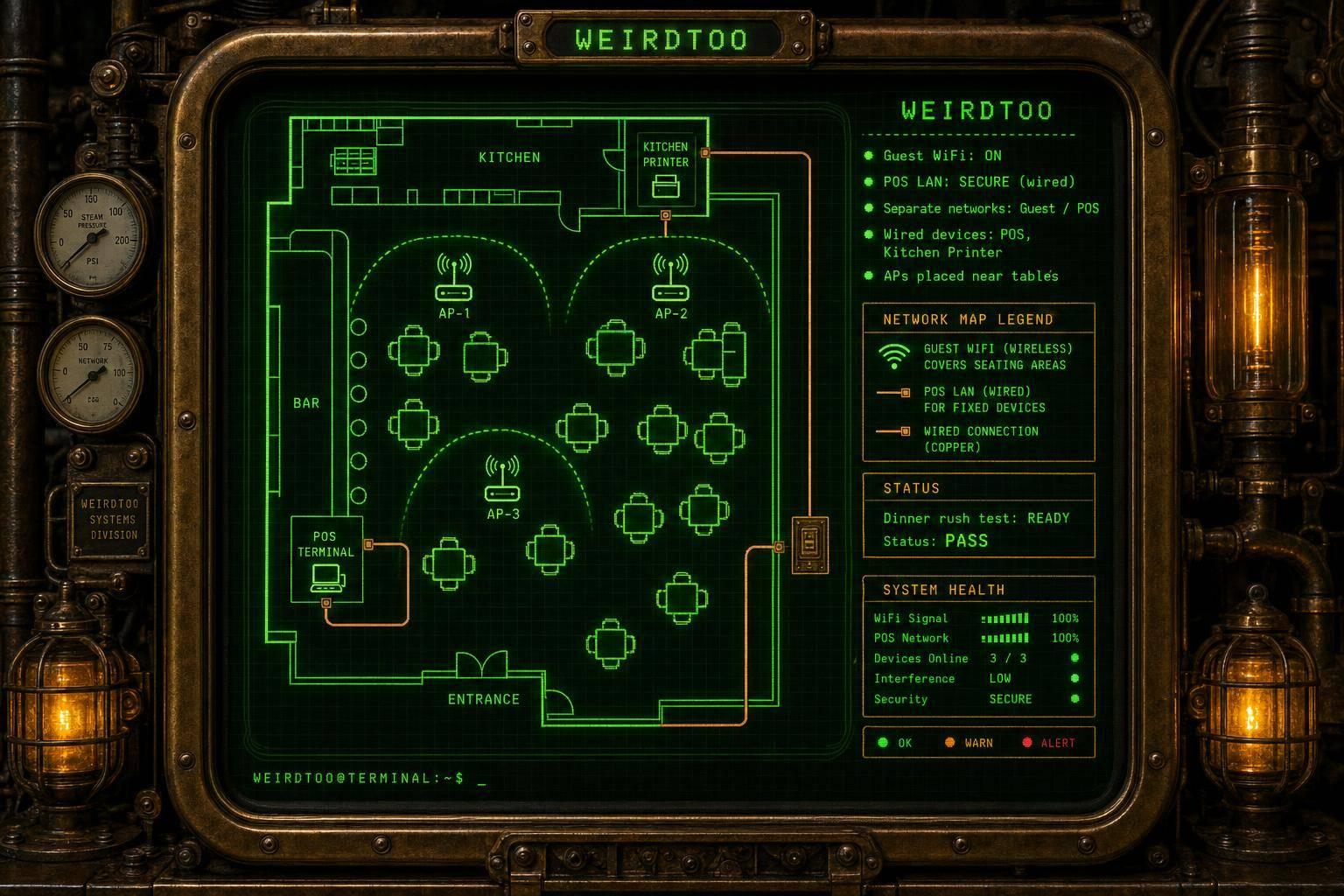
- Wire fixed gear like POS terminals, printers, and cameras.
- Split the network into guest, POS/ops, staff, and connected devices.
- Use WPA2 or WPA3 and keep the router admin page off guest WiFi.
- Put access points where people sit, not in a closet full of sadness.
- Test with a guest phone before you trust it during dinner rush.
- Change shared passwords on a schedule if you use one.
The ugly part people skip is network separation. Then a random phone, cheap smart device, or misfiring tablet gums up the whole place. One flat network feels easy right up until the card terminal drops mid-service and now your host is playing router therapist.
A few facts worth keeping in your head:
- Most guest WiFi trouble is not magic. It is bad placement, too many devices on one network, or no testing.
- A wired connection is usually more stable than WiFi for fixed restaurant gear.
- A captive portal or splash page can help with branding, but it also adds one more thing to fail.
How to Set Up Guest WiFi in Restaurants
sbb-itb-342b8b2
Quick comparison
| Option | Setup work | Control | Who fixes problems | Best fit |
|---|---|---|---|---|
| Basic router | Low | Low | You or staff | Tiny café, light traffic |
| Business WiFi gear | Medium | More | You or outside help | Most restaurants and bars |
| Managed guest WiFi service | Low for you | Most | Provider | Multi-location or data-focused spots |
If you want the short answer, here it is: separate the networks, wire the stuff that matters, place access points where guests sit, and test the guest side like a customer would. Everything else is details and blinking lights.
2. Decide what you need before you buy anything
Restaurant Guest WiFi Setup Options: Which Is Right for You?
Start with a boring list. Yes, boring. It saves money.
Write down every device that touches the network: guest phones, staff devices, POS, kitchen displays, printers, and cameras. If that list is fuzzy, scan the network and see what is already connected and who made each device [1]. You can't plan capacity from vibes.
Put fixed gear on Ethernet. Save WiFi for phones and handhelds. That one move cuts random wireless mess and makes the network easier to live with. It also shows what needs to stay far away from guest WiFi.
Pick internet service that can handle guests without slowing down operations
Buy for the rush, not the quiet hour.
A Tuesday at 3:00 p.m. means nothing. Friday at 8:30 p.m. does. If guests jump on WiFi while staff are running cards, sending kitchen tickets, and using tablets, your connection has to hold up under that load. Normal traffic is a comforting lie. Peak usage is the number that matters.
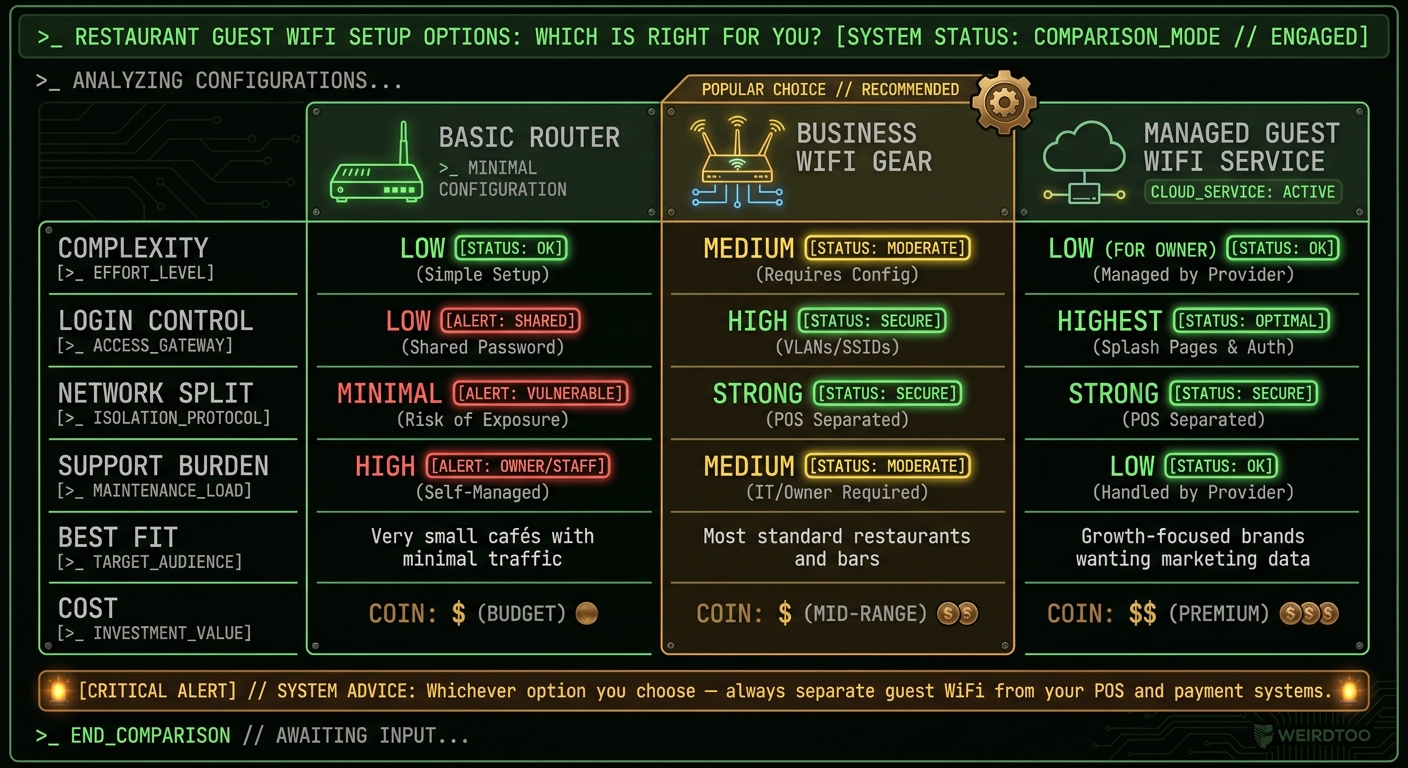
Choose between a basic router, business WiFi gear, or a managed guest WiFi service
This choice decides two things: how much control you get, and how much nonsense lands in your lap later.
| Setup Type | Complexity | Login Control | Network Split | Support Burden | Best Fit |
|---|---|---|---|---|---|
| Basic Router | Low | Low (Shared Password) | Minimal | High (Owner/Staff) | Very small cafes with minimal traffic |
| Business WiFi Gear | Medium | High (VLANs/SSIDs) | Strong separation | Medium (Requires IT/Owner) | Most standard restaurants and bars |
| Managed Service | Low (for owner) | Highest (Splash Pages) | Strong separation | Low (Handled by provider) | Growth-focused brands wanting marketing data |
The plain version:
- Basic Router: Cheap up front. Also the one most likely to become your problem at the worst time.
- Business WiFi Gear: More control. More setup. Usually the right middle ground for a restaurant or bar that is past the tiny stage.
- Managed Service: Less day-to-day work for you. More provider involvement. Often the cleanest option if you want guest login control and marketing data without playing part-time IT person.
Once you've picked the gear, put it where people will use it. Not in a back closet wrapped in pipes and hope.
Decide who will handle updates, passwords, and troubleshooting
Pick one person or one provider before launch. Not "whoever is around." One owner.
That person handles updates, passwords, and troubleshooting. If nobody owns it, nobody updates it. Then six months later the WiFi breaks during service and everyone stares at the router like it insulted them.
After that is clear, move on to network separation and security settings.
3. Set up the network so guests stay separate from the restaurant
Once you’ve got the gear, do the part that stops a bad night from getting worse: keep guest traffic away from the stuff that runs the place.
Guest WiFi should go to the internet. That’s it. It should not be able to see your POS, kitchen screens, payment terminals, printers, cameras, or staff devices. If a guest can reach any of that, the setup is sloppy.
Create separate networks for guests, POS, staff, and connected devices
Use one network for guests. Put everything else on its own lane.
| Network | Primary Users | Access needed | Best connection | Customer-visible? |
|---|---|---|---|---|
| Guest | Customers, visitors | Internet only | WiFi | Yes |
| POS & Ops | Terminals, kitchen displays | Payment processing, order tools | Wired | No |
| Staff/Admin | Managers, owners | Finance, scheduling, email | WiFi or wired | No |
| Connected devices | Cameras, printers, music | Device-specific services only | Wired or WiFi | No |
For fixed gear, use wired connections where you can. POS terminals, kitchen printers, and cameras do better on wire. WiFi is fine until it isn’t, usually during the dinner rush, which is rude but predictable.
Turn on the settings that protect the business
Splitting the networks is step one. Then you need to keep them split.
- Block guest devices from talking to each other on the guest network.
- Use WPA2 or WPA3 with a strong passphrase.
- Keep the router admin page off the guest network.
That last one gets missed more than it should. If guests can reach the admin page, you’ve built a tiny disaster and put free internet on top of it.
Next, place the equipment where the signal actually reaches diners.
4. Place the router and access points where guests actually use WiFi
If the WiFi only works near the office, you do not have guest WiFi. You have a blinking box in the wrong room.
Use wired access points and avoid bad locations
Put wired access points where people sit and wait: near the dining room, bar, host stand, waiting area, and patio. That is where the signal needs to live.
Do not stick them in closets, kitchens, behind TVs, or other blocked spots just because the cable run is easy. That is how you get a full-bar icon and a dead connection. Walls, appliances, and plain old distance weaken the signal.
Walk the room and test coverage before signing off on it
Once the gear is in place, walk the room and test it like a guest would. Use a phone. Check the dining room, bar, patio, and entrance. Look for dead spots, weak handoff, or places where the signal drops when you sit down instead of stand up.
If guests lose signal in any common seating area, move the access point. Do not call it done because the dashboard says everything is online. The dashboard is not the one trying to load the menu by the patio heater.
5. Set guest access, test everything, and avoid common mistakes
You did the hard part already. The network is split. The signal works where people actually sit. Now finish it without doing the one lazy thing that causes trouble later: putting guests and your POS too close together.
Choose between a shared password and a splash page
A shared password is the easiest setup for you and for the customer.[2] They tap the network name, enter the password, and they're in. No drama. If you go this route, change the password on a schedule. If you leave the same one up for two years, it stops being a guest password and turns into public property.
A splash page puts a welcome screen in front of the connection. It can show your restaurant name and gives you more control over access, branding, or marketing. Fine. But it also adds friction. One more tap. One more thing to break. So keep it short. Nobody came in for a burger and a captive portal maze.
| Feature | Shared Password | Splash Page |
|---|---|---|
| Guest experience | Fast and simple | One extra screen |
| Management effort | Low | Higher |
| Best for | Quick, low-touch access | Branding or controlled access |
Use WPA2 or WPA3 on the guest network with a strong passphrase. Not your street name. Not Summer2024. Not the WiFi password also taped to the cash drawer.
Run a launch checklist before guests depend on it
Do one live test from a guest phone before you trust this setup on a Friday night.
Check the boring stuff first, because the boring stuff is where things fail:
- Connect a guest device and make sure it gets online.
- Confirm your POS and staff systems stay separate.
- Try to reach the POS or the router admin page from the guest network.
- Scan the guest network and make sure only guest devices show up.
You should not be able to see the POS or admin page from guest WiFi. If you can, stop there and fix it. That is not a small issue. That is the whole point of the setup, and right now it is not doing the job.
Also: do not leave admin passwords on paper near the equipment. People do this. Then they act shocked when someone messes with the network. Dry erase marker on the router is not security.
If your firewall allows it, turn on basic logging and alerts for odd activity. Nothing fancy. Just enough to notice when something weird starts happening. Review connected devices now and then, and rotate shared credentials when needed.
Conclusion: the shortest safe path to restaurant guest WiFi
The short version is plain: split the networks, use WPA2 or WPA3, and test guest access before you open it up.
These are the mistakes that cause the mess later:
| Mistake | Why it matters |
|---|---|
| Guests and POS on one network | A compromised guest device can reach business systems |
| Router admin page reachable from guest network | Guests could access settings they should not touch |
| Never testing network isolation | Problems show up after guests are already online |
| Shared password that is never rotated | Hard to keep access under control |
| Ignoring basic logging and alerts | Strange activity is harder to spot |
FAQs
How many access points does my restaurant need?
It comes down to your room, not some magic router spec.
A small café might get by with one router. A bigger dining room often will not. Walls, booths, metal shelves, kitchen gear, and even a crowded room full of people can mess with signal. WiFi is picky like that.
Cover every seating area with access points, not just the spot near the host stand where the installer happened to stand for 30 seconds and call it done. If guests sit in a back corner and pages will not load, you do not have guest WiFi. You have a poster.
Keep guest access points separate from your POS and staff systems. Do not mash everything onto one network and hope for the best. That is how slow service and dumb avoidable problems show up on a Friday night.
If some corners get weak signal, add more access points. One box in the wrong place usually does less than two in the right places.
Can I use one WiFi name for guests and staff?
No. Guests and staff should not use the same WiFi name.
Put guest traffic on its own network and keep it away from your POS and staff systems. That split does two simple jobs: it helps protect the data you actually care about, and it cuts down on dumb security risks you do not need.
If a customer is on the same network as the gear that runs your bar, shop, or front desk, you are making life easier for the wrong person. Guest WiFi should be isolated from business operations. Full stop.
When should I call a provider instead of setting it up myself?
Call a pro when the setup stops being basic.
If you need traffic segmentation, tighter security, or more capacity than a home-office router can handle, don’t try to duct-tape your way through it. That usually ends with dropped connections, weird device conflicts, and a long night staring at settings you should not have to babysit.
Bring in an expert if you’re stuck on things like:
- VLANs that need to work properly, not just exist on paper
- Multiple access points across a big venue
- A connection that matters to daily sales, bookings, or service
- Updates, monitoring, and performance checks you never quite get around to
This matters even more in places where Wi-Fi failure costs money fast. A bar on trivia night. A retail shop with cloud POS. A warehouse office with patchy coverage and no patience for excuses.
Current contact path
Need Weird Network WiFi, custom apparel, or scoped help?
Use the contact form; removed product, checkout, research, and newsletter funnels stay offline.